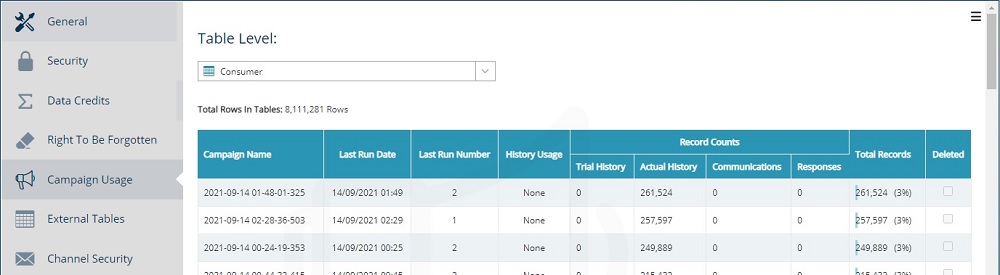
The campaign usage tab shows how much campaign data exists for each database table and provides tools for pruning campaign data or deleting campaign history.
Campaign data
You can view campaign history per database table by selecting the table level within the dropdown, e.g. selecting the consumer level table displays data for campaigns at the consumer level.
The total rows figure indicates the count of campaign history records across all campaigns within the chosen table. The total records column at the right of the table breaks this figure out into the number of records per campaign, plus the percentage of the total campaign history each campaign represents. The record counts column further breaks this information down into record type, i.e. trial or actual history, communications, and responses.
Pruning campaign history
Pruning removes records in the campaign history from the following steps marked Y.
| SQL step type | Engage step name | XML type | Pruned |
|---|---|---|---|
| 1 | Audience |
Audience |
N |
| 2 | Merge |
Merge |
Y |
| 3 |
Communication |
Communication |
N |
| 4 | Volume Split |
SplitVolume |
Y |
| 5 | Yes No Split |
SplitYesNo |
Y |
| 6 |
SplitRandom |
||
| 7 | Response |
SplitResponse |
N |
| 8 | Wait |
Wait |
Y |
| 9 | Seed List |
SeedList |
Y |
| 10 |
CampaignSelection |
||
| 11 | Dedupe |
Dedupe |
Y |
| 12 | Exit |
Exit |
N |
| 13 | Field Split |
SplitFieldValue |
Y |
| 14 |
Query Split |
SplitQueryList |
Y |
| 15 |
Filter |
||
| 16 | Control |
Control |
Y |
| 17 | Tag |
Tag |
Y |
| 18 | Dynamic Split |
SplitDynamic |
Y |
| 19 | Integration |
Integration |
N |
| 20 | Link To |
JoinOut |
N |
| 21 | Link From |
JoinIn |
N |
| 22 | Implied |
ImpliedAudience |
N |
| 23 | Volume Limit |
VolumeLimit |
Y |
| 24 | Multi Variant Test |
MultiVariantTestingStep |
Y |
| 25 | Cascade | Segmenter | N |
| 26 | Triggered Audience | TriggeredAudience | N |
To prune campaign history:
-
Right click on the campaign you wish to prune to open a list of options.
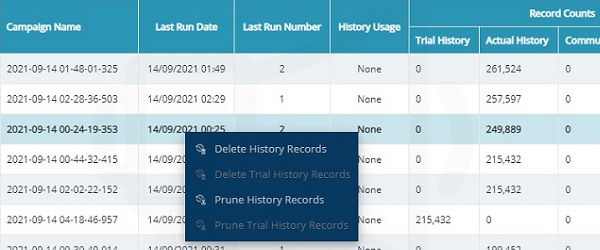
If the campaign contains trial data, you will have the option to delete or prune trial history. If you click on a campaign with real data, the highlighted options will be to prune or delete real data.
-
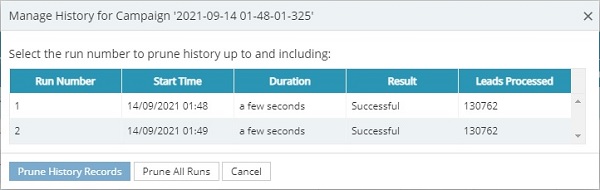
Click on the prune records option to open the manage history window for the chosen campaign.
-
Select the run number to prune up to and including, e.g. to prune records for the first 40 runs of a campaign, click on run number 40.
-
Once you select a run number, the prune history records button becomes available. Click to proceed with the prune.
Alternatively, you can prune all runs of your chosen campaign using the prune all runs button. This does not require clicking on a run number.
-
When pruning real data, you will receive a notification warning that pruning cannot be undone. Click Yes to proceed or no to abort the prune.
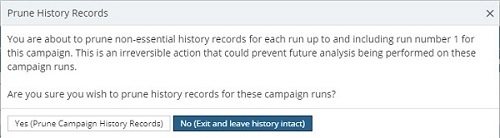
This warning does not appear for trial data.
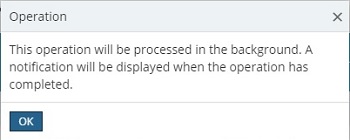
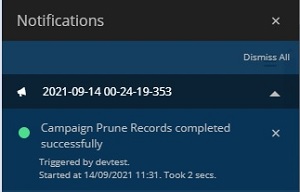
After confirming the prune, Engage will perform the prune as a background task and send a notification upon completion.
Automatically prune campaign history
If you know that you will not need campaign history after a given point in time, you can set a prune date using the campaigns tab within the settings menu.
Deleting campaign history
To delete campaign history:
-
Right click on the campaign you wish to delete to open a list of options.
If the campaign contains trial data, you will have the option to delete or prune trial history. If you click on a campaign with real data, the highlighted options will be to prune or delete real data.
-
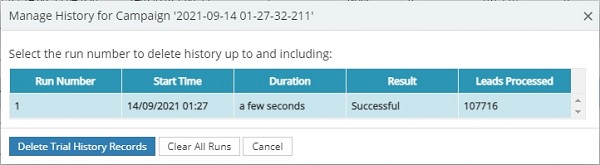
Click on the delete records option to open the manage history window for the chosen campaign.
-
Select the run number to delete up to and including, e.g. to delete records for the first 40 runs of a campaign, click on run number 40.
-
Once you select a run number, the delete history records button becomes available. Click to proceed with the delete.
Alternatively, you can delete all runs of your chosen campaign using the clear all runs button. This does not require clicking on a run number.
-
When deleting real data, you will receive a notification warning that deletion cannot be undone. Click yes to proceed or no to abort the deletion.
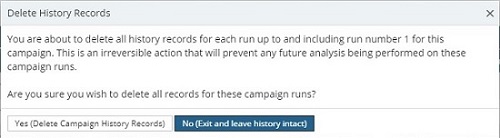
Note: This warning does not appear for trial data.
After confirming the deletion, Engage will perform the operation as a background task and send a notification upon completion.
Note: If you wish to clear all the history for a given campaign, you can open the campaign and use the clear campaign history icon in the hamburger menu to remove all history and response data (as an alternative to using the clear all runs button).
Automatically delete campaign history
If you know that you will not need campaign history after a given point in time, you can set a deletion date using the campaigns tab within the settings menu.